
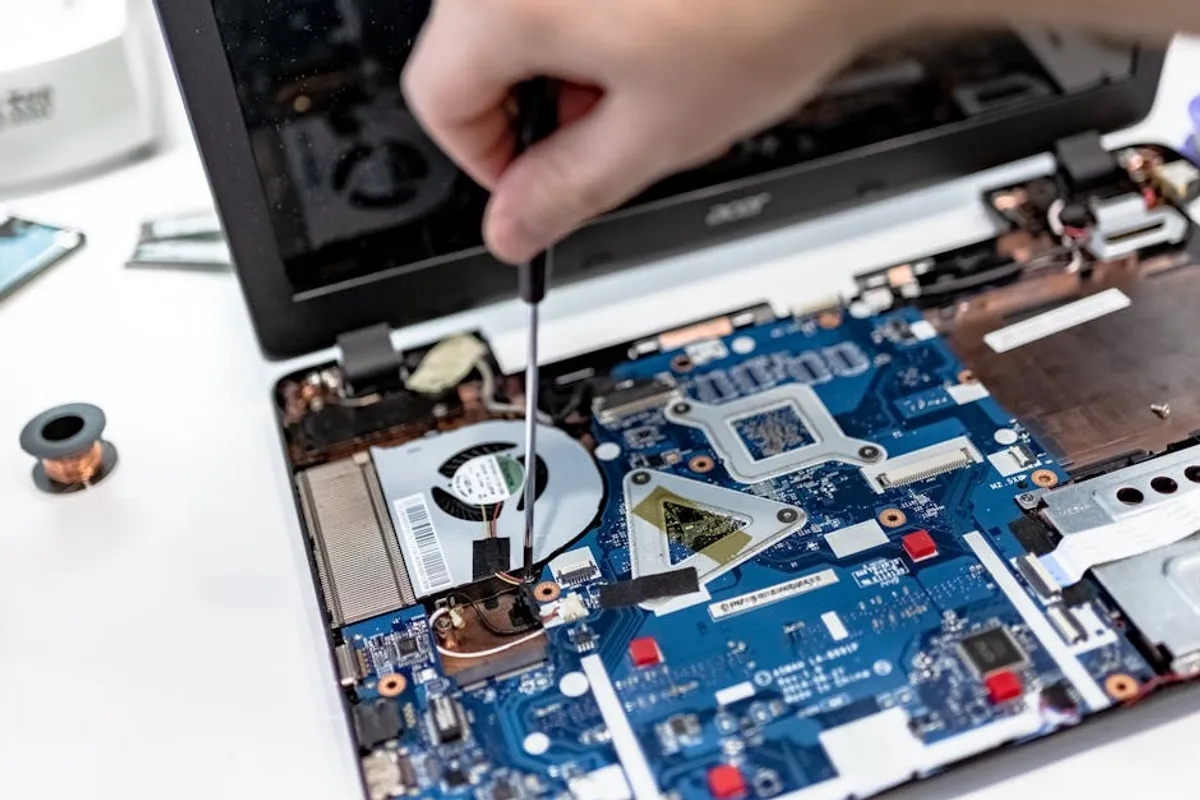
A software installation failure can disrupt workflows, delay critical projects, and incur unexpected downtime. For IT professionals, system administrators, and even advanced users, understanding the common pitfalls and employing a systematic troubleshooting approach is essential to maintaining operational continuity and avoiding costly delays. This guide outlines practical steps and diagnostic methods to resolve the most frequent software installation problems, focusing on efficiency and minimizing disruption.
Initial Diagnostic Steps
Before delving into complex solutions, begin with fundamental checks. Many installation issues stem from basic oversights that are quick to identify and rectify.
Verify System Requirements
The first point of failure often lies in unmet system specifications. Software packages specify minimum and recommended hardware (processor speed, RAM, disk space) and software (operating system version, specific libraries) requirements. Failure to meet these can lead to installation errors, crashes, or unstable performance post-installation.
- Processor: Check for architecture (32-bit vs. 64-bit) and clock speed.
- RAM: Ensure sufficient physical memory is available, not just free space.
- Disk Space: Confirm enough free space on the target drive for installation and subsequent operation, accounting for temporary files.
- Operating System: Verify the exact OS version, build number, and service pack level.
Check Administrator Privileges
Many software installations require elevated permissions to write to protected system directories, modify the registry, or install system services. Attempting to install without administrator rights will often result in permission denied errors or incomplete installations.
Action: Right-click the installer executable and select "Run as administrator." For network deployments, ensure the deploying account has appropriate permissions on target machines.
Temporarily Disable Security Software
Antivirus programs, firewalls, and other security suites can sometimes misidentify legitimate installer processes or files as malicious, blocking their execution or quarantining necessary components. This is a common cause of installations failing silently or midway through.
Warning: Only disable security software temporarily and with caution, ideally disconnecting from the network if possible. Re-enable it immediately after the installation is complete.
Addressing Corrupted Installers and Downloads
A common, yet often overlooked, problem is a corrupted installation file itself. This can occur during the download process or if the file was improperly stored.
Re-download the Installer
If an installation fails repeatedly with vague errors, the installer package might be incomplete or corrupted. Re-downloading the file from the official source is a simple, effective first step. Ensure a stable internet connection during the download.
Verify File Integrity with Checksums
For critical software or large downloads, developers often provide checksums (MD5, SHA1, SHA256 hashes). These unique digital fingerprints allow you to verify that your downloaded file is identical to the original and hasn't been tampered with or corrupted. Tools are readily available to calculate a file's checksum for comparison.
Resolving Dependency and Compatibility Issues
Modern software often relies on specific runtime environments, libraries, or frameworks. Mismatches or missing components can halt an installation.
Install Missing Dependencies
Many applications require specific versions of frameworks like Microsoft.NET Framework, Java Runtime Environment (JRE), or Visual C++ Redistributable packages. The installer might prompt you, but sometimes it fails without clear indication. Check the software's documentation for required dependencies and install them manually if necessary.
Address Operating System Compatibility
Software designed for a 32-bit operating system may not install correctly on a 64-bit system without specific compatibility modes, and vice-versa. Similarly, older software might not function on newer OS versions without compatibility settings or virtualized environments. Always confirm the software version matches your OS architecture and version.
Resolve Software Conflicts
Sometimes, existing software on your system can conflict with a new installation. This is particularly true for applications that share common libraries, drivers, or system resources. Identifying and temporarily disabling or uninstalling conflicting software can resolve these issues.
Troubleshooting Registry and Permissions Errors
Windows Registry issues or incorrect file/folder permissions are common culprits for persistent installation failures, especially after previous failed attempts or system cleanups.
Clean Up Previous Installation Traces
A previous, failed installation attempt can leave behind residual files, registry entries, or temporary data that interfere with subsequent installations. Manually removing these traces (with caution) or using the software's uninstaller (if available) can clear the path for a fresh installation.
Pro Tip: Before attempting any advanced troubleshooting that involves modifying system files or the Windows Registry, create a system restore point. This provides a safety net, allowing you to revert your system to a stable state if an intervention inadvertently causes further issues or system instability.
Adjust Folder and File Permissions
In multi-user or enterprise environments, restricted folder permissions can prevent installers from writing necessary files. Ensure the user account performing the installation has full control over the target installation directory and any temporary directories used by the installer (e.g., %TEMP% folder).
Advanced Diagnostic Techniques
When basic steps fail, deeper investigation into system logs can provide specific error codes and messages that pinpoint the exact problem.
Utilize Event Viewer
Windows Event Viewer (eventvwr.msc) logs system events, including application errors. During a failed installation, check the "Application" and "System" logs for entries related to the installer executable or relevant services. Error codes and descriptions here can be invaluable for targeted troubleshooting.
Perform a Clean Boot
A clean boot starts Windows with a minimal set of drivers and startup programs. This helps isolate whether a background program or service is interfering with the installation. If the software installs successfully in a clean boot environment, you can then systematically enable services to identify the conflict.
Install in Safe Mode
Similar to a clean boot, installing in Safe Mode (with Networking, if the installer needs internet access) can bypass many non-essential drivers and services that might be causing conflicts. This is a more restrictive environment but can be effective for stubborn installations.
Proactive Measures for Smoother Installations
Adopting best practices can significantly reduce the incidence of installation problems.
- Always download software from official, trusted sources to avoid corrupted or tampered files.
- Keep your operating system and drivers updated to ensure compatibility and stability.
- Regularly clear temporary files and run disk cleanup to free up space and remove potential conflicts.
- Understand the software's documentation and system requirements thoroughly before initiating an install.
Frequently Asked Questions
Why does software installation fail even when I run it as an administrator?
While administrator rights are crucial, they don't guarantee success. The failure could still be due to corrupted installer files, unmet system dependencies, conflicts with other installed software, or deeper registry issues that even an administrator account cannot bypass without specific manual intervention.
How do I check my system's compatibility with software requirements?
For Windows, you can find system information by right-clicking "This PC" (or "My Computer") and selecting "Properties." This shows your OS version, processor, and RAM. For disk space, check "This PC" in File Explorer. Compare these details against the software's documented minimum and recommended specifications.
Is it safe to disable my antivirus during software installation?
Temporarily disabling your antivirus can resolve installation conflicts, but it carries a risk. Only do so if you are certain the software installer is from a legitimate, trusted source. Re-enable your antivirus immediately after the installation is complete to restore system protection.
What should I do if an installation error message provides a specific code?
If an error message includes a specific code (e.g., 0x80070005), search for that code online, ideally alongside the software name or "Windows Installer error." Microsoft's knowledge base or the software vendor's support forums often provide specific explanations and solutions for common error codes.